Help exactly when you need it, wherever you are studying
A hint before you answer, a plain explanation of why you got something wrong, a memory trick when a fact will not stick: BrightStudy’s AI help is built into MCQs, flashcards and Study Docs, not bolted on as a separate tool.

Help while you practise
Help that meets you where you are stuck
The same kind of help follows you from MCQs to flashcards, in the same place you are already working.
Get a hint
A one-sentence nudge before you answer an MCQ or flashcard, never the answer itself.
Find out why you were wrong
After a wrong MCQ answer, an explanation aimed at the exact option you picked.
Go deeper
A fuller explanation of the idea behind any question or card, once you have answered.
Get a memory trick
A short mnemonic or mental image to help an answer stick next time.
Type and let AI mark it
Typed flashcard answers are marked by meaning, not exact wording.
Four kinds of help, one question
Each tool answers a different question about the same MCQ.
Available
Example question
Which type of rock forms when magma cools slowly beneath the surface? You chose: B. Extrusive igneous. Correct answer: A. Intrusive igneous.
Hint
- A short nudge toward the right option, without revealing which letter it is.
Explain my mistake
- Explains in 2-4 sentences why your choice was wrong and what sets it apart from the correct answer.
Explain further
- A clear 3-5 sentence explanation of the idea behind the question.
Memory trick
- One vivid mnemonic, bit of wordplay or mental image to help it stick.
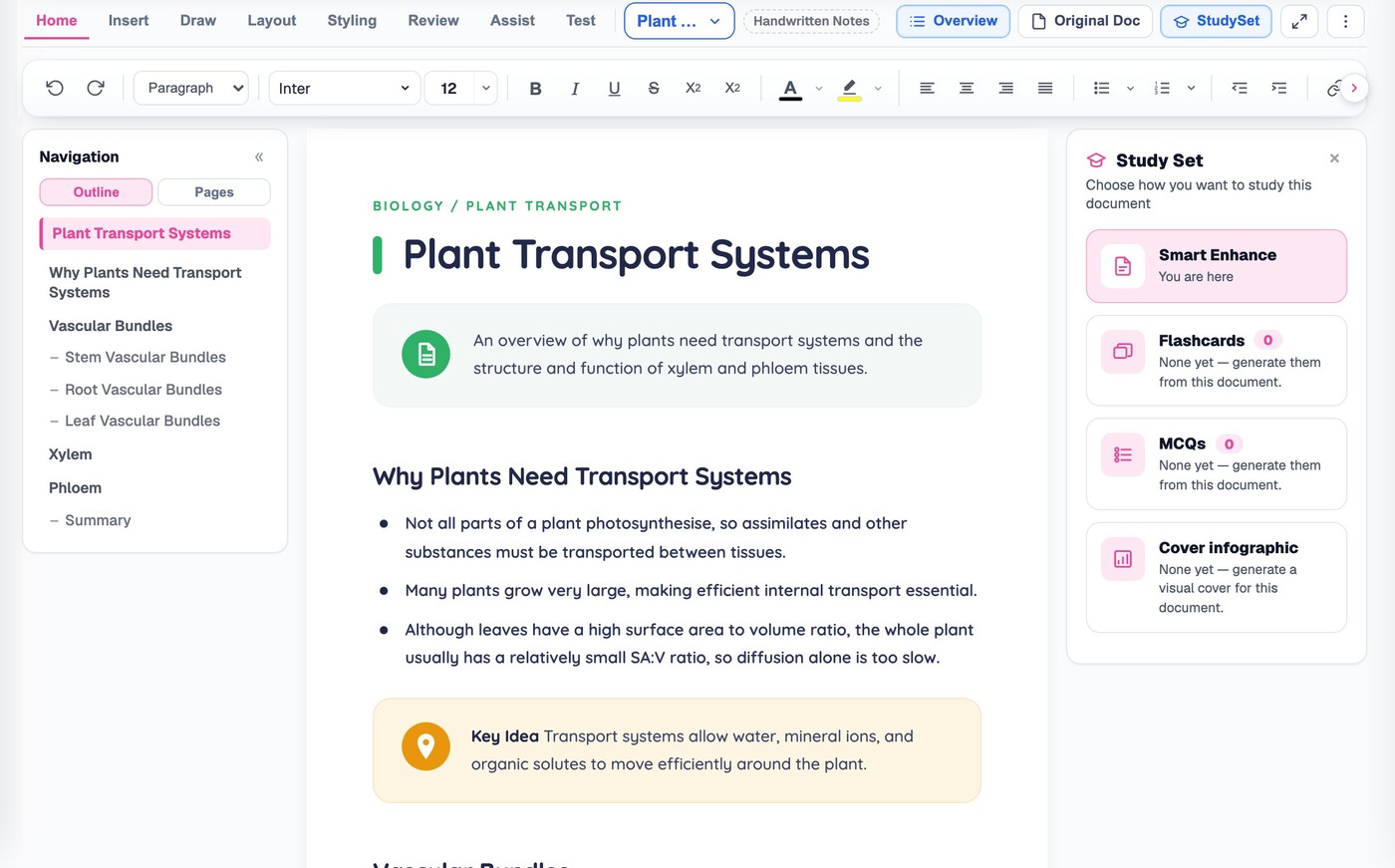
The same help, built around a card
Flashcards get the same three tools, with one difference: a memory cue can be edited and saved on the card itself.
Hint
A nudge before you reveal the answer.
Memory cue
An AI-written hook you can edit, keep or regenerate — or just write your own.
Explain further
A deeper explanation once the answer is revealed.
Marked by meaning, not exact wording
Switch a flashcard to Type Answer and AI reads what you wrote for its meaning.
You type your answer
Write what you remember, in your own words.
AI reads for meaning
It compares your answer with the card, not a word-for-word match.
You get a verdict
Correct, Nearly or Incorrect, with a one-sentence reason.
You decide the grade
The verdict suggests a grade button — you still confirm it yourself.
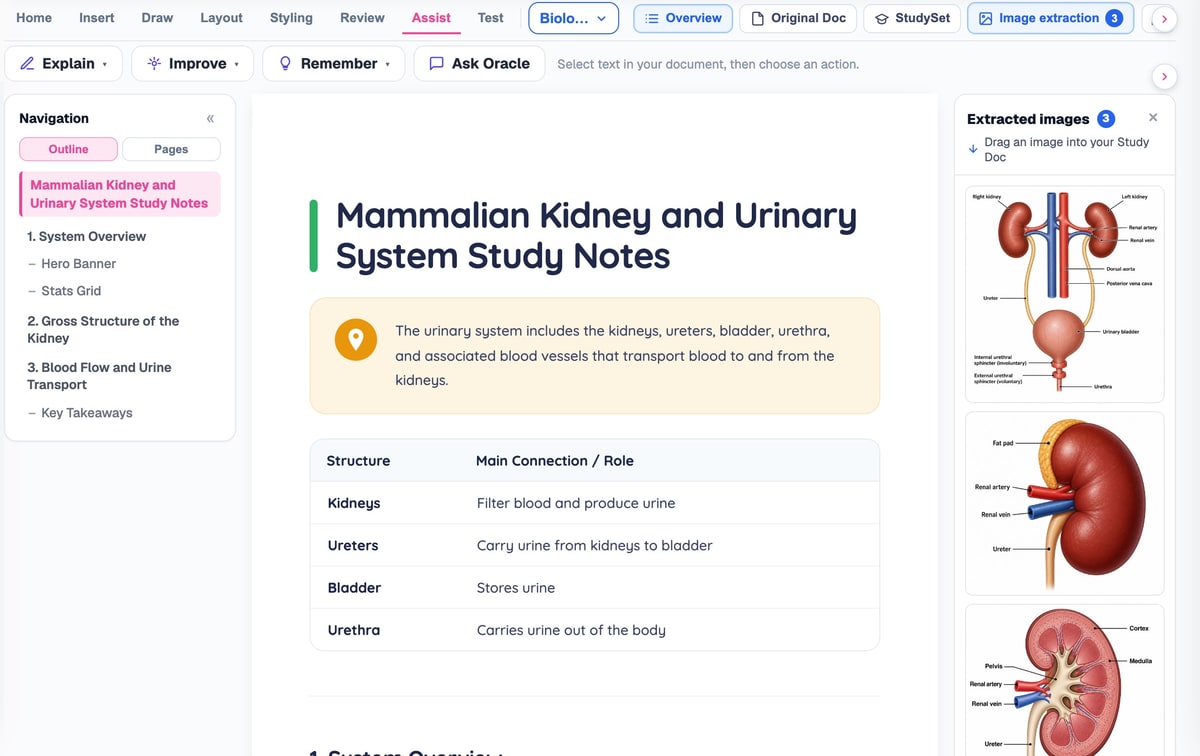
Select some text, choose what you need
Highlight any passage in a Study Doc and the Assist tools open on it.
Explain
Choose it if
A passage needs unpacking.
You get
Simply, in depth, step by step or with an example — opens as a chat with your AI tutor.
See how it works ↓Improve
Choose it if
Your own notes need tightening.
You get
Polish the writing, add an explanation, shorten it or rephrase it.
See how it works ↓Remember
Choose it if
A fact will not stick.
You get
A mnemonic, a memory aid, an analogy or a short story built around it.
See how it works ↓Assist, without leaving the page
Four tools, all working directly on the text you have selected.
Explain, Improve or Remember
Right-click a selection, or use the Assist tab, for the full set of tools.
Pick how deep to go
Add an explanation Brief or In depth, and insert it straight into your notes.

A memory aid, your way
A mnemonic, an analogy or a short story — regenerate until one sticks.

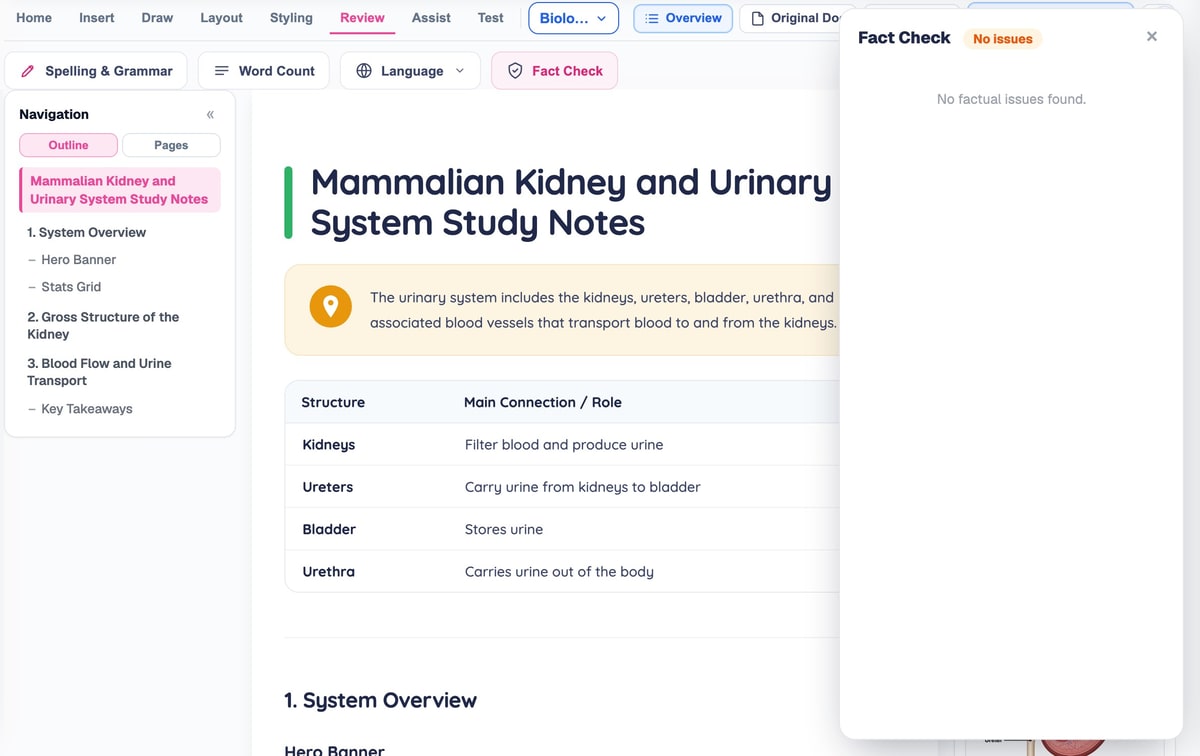
Fact check your notes
Flags statements that may be inaccurate, over-broad or need a source, with a reason and a suggested fix for each.
Help that finds you, not the other way round
Every AI helper sits next to the thing it is helping with.
- 1
Practise or read
Answer an MCQ, study a flashcard, or work through a Study Doc.
- 2
Ask for help
A hint, an explanation, a memory trick, or an Assist tool — whichever fits.
- 3
Get a focused answer
A short, specific response built around exactly what you are looking at.
- 4
Keep it if it helps
Save a memory cue, insert an explanation, or just carry on.
- 5
Move on
Back to your question, card or notes, no detour required.
Explain opens a conversation, not just an answer
Choosing Explain does not just print a paragraph — it opens a chat with your AI tutor, with your chosen mode already asked for you, so you can follow up, ask “why” again, or take the conversation further. See AI tutors for the full chat experience.
Questions, answered
Where to find AI help, and exactly what each tool does.
Try BrightStudy free and upload your first document, or email us at support@brightstudy.ai.
What help can I get on an MCQ?
What help can I get on a flashcard?
Can I type my flashcard answers?
What can Assist do in a Study Doc?
Does Explain give a straight answer or open a chat?
Can BrightStudy fact-check my notes?
Is the memory cue on a flashcard permanent?
Is AI help free to use?
Explore the rest of BrightStudy
Move across the strips · tap one to explore
 FlashcardsActive recall with focused question-and-answer cards.Learn more →
 MCQsExam-style questions with answer explanations.Learn more →
 Deep LearningExplain your understanding and get feedback.Learn more →
 AI TutorsAsk questions and explore difficult concepts.Learn more →
 Spaced RepetitionRevisit your learning with scheduled reviews.Learn more →
 Study DocsStructured notes you can read, edit and study from.Learn more →
 Document UploadsPDFs, slides and typed or handwritten notes.Learn more →
The right help, exactly where you need it.
A hint, an explanation or a memory trick, built into MCQs, flashcards and Study Docs.
- Free plan to get started
- Study Docs, flashcards and MCQs
- Runs in your browser