Share what you made, your way
Send a Study Doc, flashcard deck or MCQ set into a chat and your friend gets their own copy to study. Share a document or folder by email instead, and they see your original. Publish to the Community Library to help anyone.

Three ways to share
Share what you made, without losing track of it
However you send something, BrightStudy keeps the original where it is — in your Vault — and is clear about what the other person gets.
Share into a chat
Send a Study Doc, flashcard deck or MCQ set straight into a direct chat or group — they get their own copy.
Share a document or folder by email
Give a registered member view access to one document or folder, without copying it anywhere.
Publish to the Community Library
Put a reviewed, public resource in front of anyone studying the same subject.
Find it again from your Vault
A “Shared” quick-access list shows the last items friends have sent you.
Chat sharing needs the 18+ check
Like the rest of chat, sending material into a thread needs a verified account.
One snapshot, their own copy
Chat sharing never links back to your original — it copies what you had the moment you pressed send.
Up to 5 items at once
Shared material
Cell biology flashcards · 24 cards
Pick & send
- Open the + picker in any chat and choose from the Study Docs, decks and MCQ sets you own.
- Pick up to 5 items to send together in one message.
Sent as a snapshot
- BrightStudy copies the content into the share the instant you send it.
- Edit or delete your original afterwards and the share does not change — what they got is what you sent.
Preview, then Save to Vault
- They can preview it in the chat before deciding anything.
- Save to Vault copies it into their own Vault, filed under “Shared with me” — a deck, MCQ set or Study Doc exactly like one they made themselves.
Not every share works the same way
Pick the method that matches what you want to send.
Chat share
Study Docs, flashcard decks and MCQ sets — up to 5 items in one message.
Email share
One document or one folder, given to a registered member by their email address.
Community Library
A Study Doc, deck, MCQ set or complete Study Set, reviewed before anyone can find it.
Not shareable
Images in your library and plain stored files stay private to you.
One person, or anyone studying the same thing
Let what you are sharing, and who it is for, decide the method.
Share in a chat
Choose it if
You want to help one friend or group study right now.
You get
Your material copied straight into their Vault, ready to study or edit.
See how it works ↓Share a document by email
Choose it if
A classmate needs ongoing access to one document or folder.
You get
They open your original at any time from Shared Items — nothing is copied.
See how it works ↓Publish to the Community Library
Choose it if
You want to help anyone studying the same subject, not just people you know.
You get
A reviewed, public resource anyone can find and add to their own Vault.
See how it works ↓From your Vault to theirs
Four steps, usually seconds apart.
Pick your material
Choose up to 5 Study Docs, decks or MCQ sets from your own Vault.
Posted as a share card
A snapshot is posted into the chat as its own message, so it never gets lost in the conversation.
They preview it
A read-only look at what you sent, from the chat itself or from Social → Shared.
Saved as their own copy
Save to Vault copies it in, filed under “Shared with me” — ready to study, edit or share onward.
Share in a few taps
The same flow for a Study Doc, a deck or an MCQ set.
- 1
Make something worth sharing
Upload notes, or build a deck or MCQ set — anything already in your Vault.
- 2
Open a chat
Message a friend directly, or post into a study group.
- 3
Tap + and choose it
Pick up to 5 items from your Vault to send at once.
- 4
They get a preview
A read-only look before they decide what to do with it.
- 5
Save to Vault
Their own copy lands in “Shared with me”, ready to study their way.
Everything shared in two places
A quick list in your Vault, and a full, searchable ledger in Social.
Shared with you, on Social Home
The latest material friends have sent you, with a one-click Save to Vault.

Every share, in one ledger
Filter by received or sent, by Study Doc, deck or MCQ set, and search by title or person.
Friends & Messaging →
Find it from your Vault
The Shared quick-access dropdown lists the last items friends have sent you.
Vault →
Share a document or folder by email
Right-click any document or folder in your Vault, add their email address, and share it — they open it from Shared Items.

Access by email, not a copy
Share a document or folder with another BrightStudy member by their email address. Unlike a chat share, nothing is copied: they open your original from Shared Items, and see whatever is there now, not a frozen snapshot.

Questions, answered
What you can share, what the other person gets, and where to find it.
Try BrightStudy free and upload your first document, or email us at support@brightstudy.ai.
What can I share into a chat?
Does the other person get my original, or a copy?
What’s the difference between a chat share and sharing by email?
Can I share with someone who isn’t my friend?
Where do I find what has been shared with me?
Is chat sharing available to everyone?
Can I share with anyone, not just people I know?
Is sharing included in the Free plan?
Explore the rest of BrightStudy
Move across the strips · tap one to explore
 Community LibraryStudy resources shared by the community.Learn more →
 Friends & MessagingConnect with friends and keep study conversations together.Learn more →
 Study GroupsBring people and shared resources into a group space.Learn more →
 Study DocsStructured notes you can read, edit and study from.Learn more →
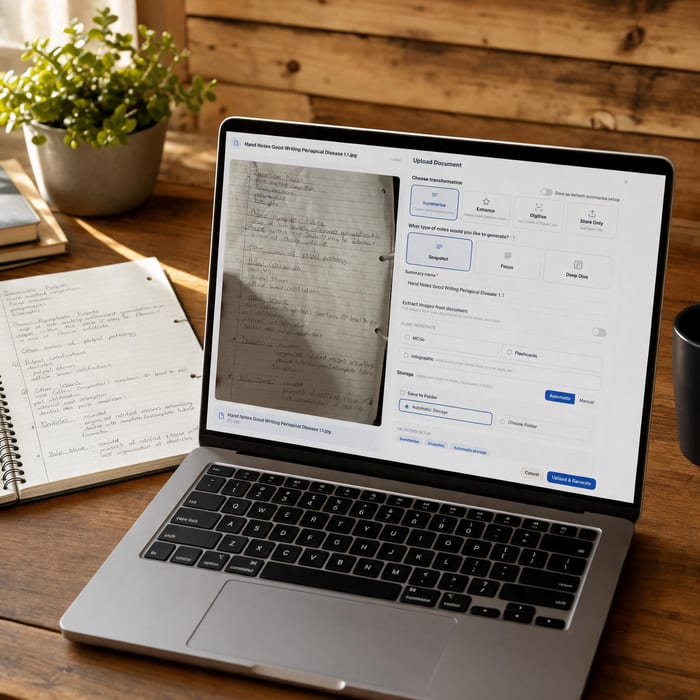 Document UploadsPDFs, slides and typed or handwritten notes.Learn more →
 YouTube LearningTurn video lessons into study materials.Learn more →
 RecordingsRecord or upload audio for your learning.Learn more →
Share what helped you.
Send a Study Doc, deck or MCQ set to a friend, or give someone access to a document by email.
- Free plan to get started
- Study Docs, flashcards and MCQs
- Runs in your browser