From video to Study Doc
A lecture you watched, now a document you can study
Choose YouTube on the upload page instead of a file, and the rest of the process matches any other upload.
Paste a link
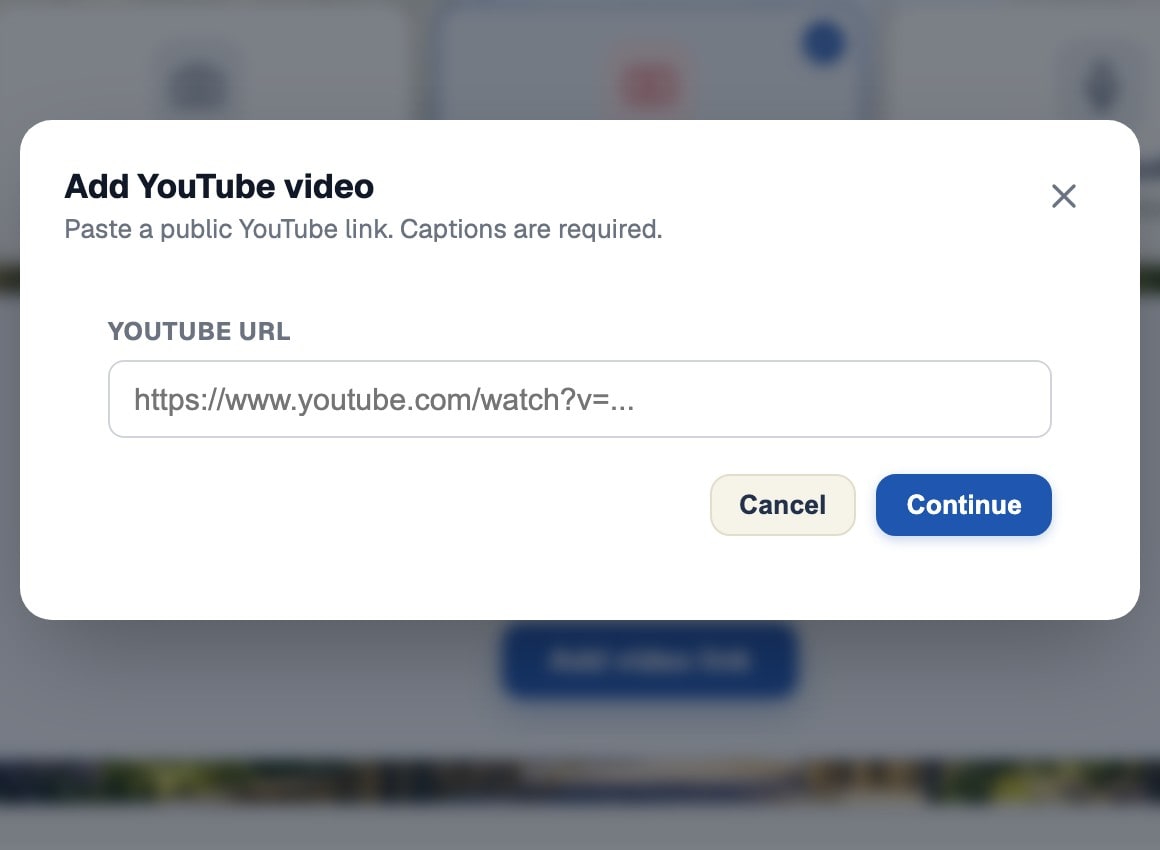
Choose YouTube on the upload page and paste a public video link. Captions are required.
Check the preview
BrightStudy fetches the title and channel where it can, and shows the video embedded on the left while you choose.
Summarise or Enhance
The two options that apply to a video transcript. Digitise and Store only are not offered for a YouTube import.
Add flashcards or MCQs
Tick them alongside your notes, generated from the same transcript.
Kept in its own Vault centre
Every video you study collects in a YouTube storage centre, alongside your documents, images and recordings.
Choose what the transcript becomes
A video transcript is still text, so it goes through the same note-making tools as a long document.
01
Summarise
Condense the transcript into study notes at the depth you choose: Snapshot, Focus or Deep Dive.
02
Enhance
Improve the transcript into fuller revision notes, from a light Polish to a full Transform.
From a pasted link to a usable transcript
BrightStudy works from the video’s own captions, not by watching or listening to it.
You paste
https://www.youtube.com/watch?v=…
Video details
- Title and channel are fetched for the preview.
- If they are not available, BrightStudy falls back to the video ID and keeps going.
Transcript
- BrightStudy reads the video’s own captions.
- No usable captions, no transcript — BrightStudy tells you plainly rather than guessing at the content.
Language
- English is preferred, but BrightStudy accepts whatever language the captions are actually in.
What can stop a video from working
A few honest limits, so you know what to expect before you paste a link.
No captions
If a video has no usable captions, BrightStudy says so clearly instead of guessing at the content.
Private or restricted
The video must be public. A private, unlisted-and-restricted or removed link cannot be read.
A busy day for the transcript service
If the transcript service hits its daily limit, BrightStudy asks you to try again tomorrow.
Condensed, or improved and fuller
Both start from the same transcript. The difference is how much you want kept versus expanded.
Summarise
Choose it if
The lecture is long and you want the essentials.
You get
Snapshot, Focus or Deep Dive notes made from the transcript.
See how it works ↓Enhance
Choose it if
You want fuller, better-structured revision notes.
You get
Polish, Refine or Transform the transcript into notes.
See how it works ↓Add flashcards
Choose it if
You want to test recall, not just read.
You get
Tick Flashcards when you choose your output.
See how it works ↓Add MCQs
Choose it if
You want exam-style practice from the lecture.
You get
Tick MCQs when you choose your output.
See how it works ↓Every video, kept in its place
A storage centre of its own in the Vault, and the same tools as any upload once it is a Study Doc.
A storage centre just for video
Every video you study, with its title, channel and what it is linked to.
Vault →
Paste and preview
A public link, a required-captions note, and a preview before you choose.
No surprises on format
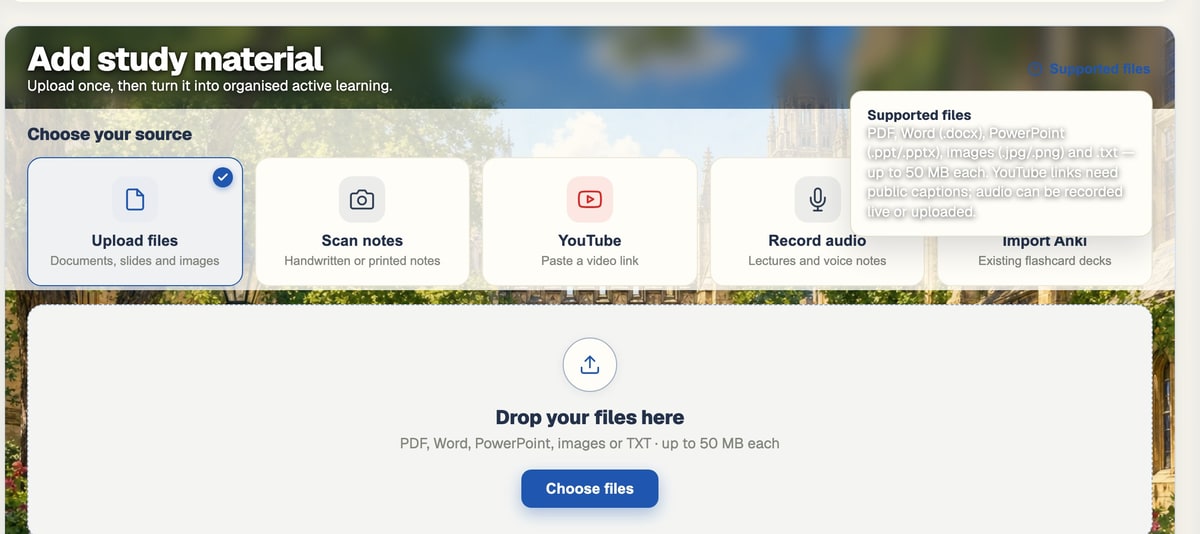
The supported-files note spells out that YouTube links need public captions.
Flashcards and MCQs follow too
Tick them when you choose Summarise or Enhance, and they are ready alongside your notes.
Spaced repetition →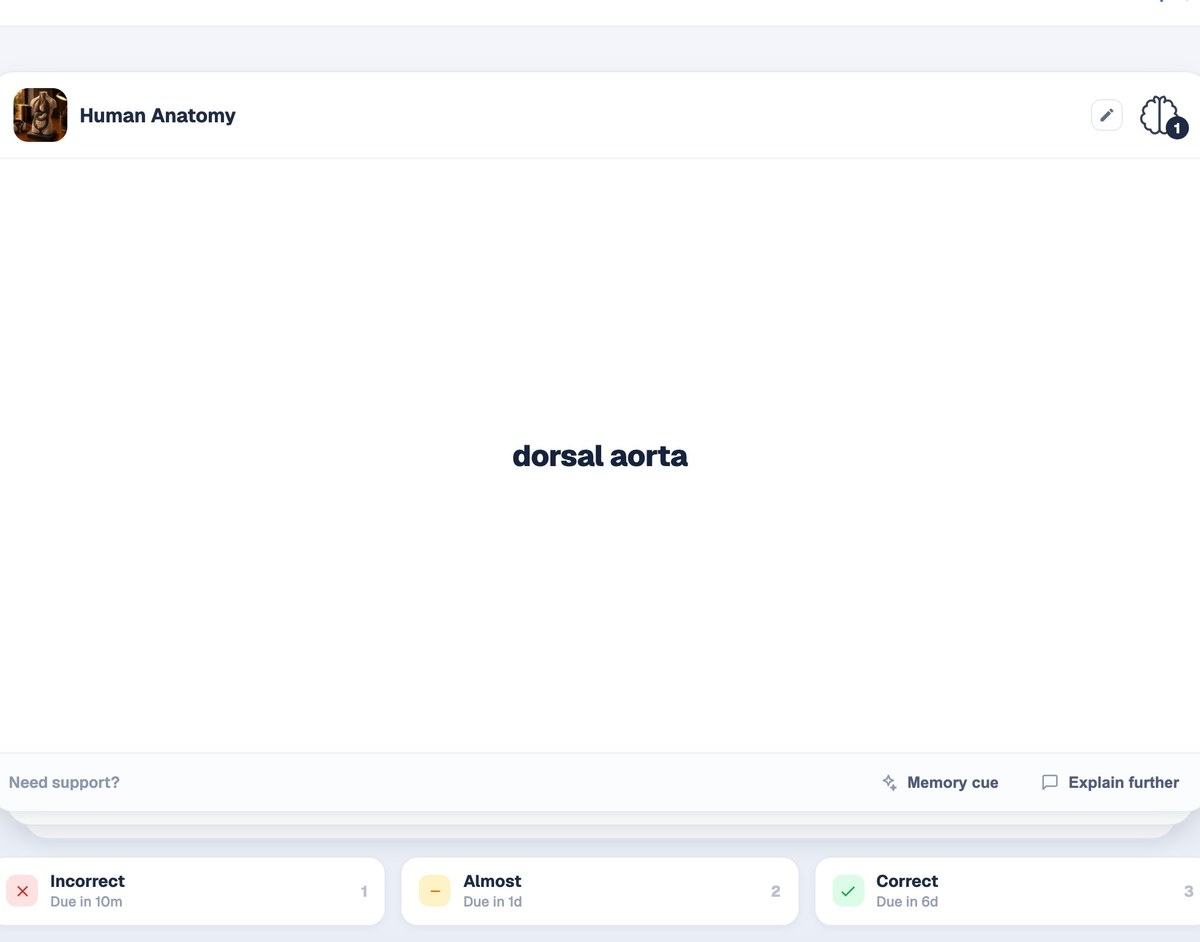
From a pasted link to a finished Study Doc
Most videos are ready a couple of minutes after you paste the link.
- 1
Paste the link
A public YouTube URL, on the upload page.
- 2
Captions fetched
BrightStudy reads the video’s own captions as its transcript.
- 3
Choose your output
Summarise or Enhance, at the depth you want.
- 4
Add flashcards or MCQs
Tick them to generate alongside your notes.
- 5
Open your Study Doc
Formatted notes, ready to study, filed in the YouTube storage centre too.
The same editor as every Study Doc
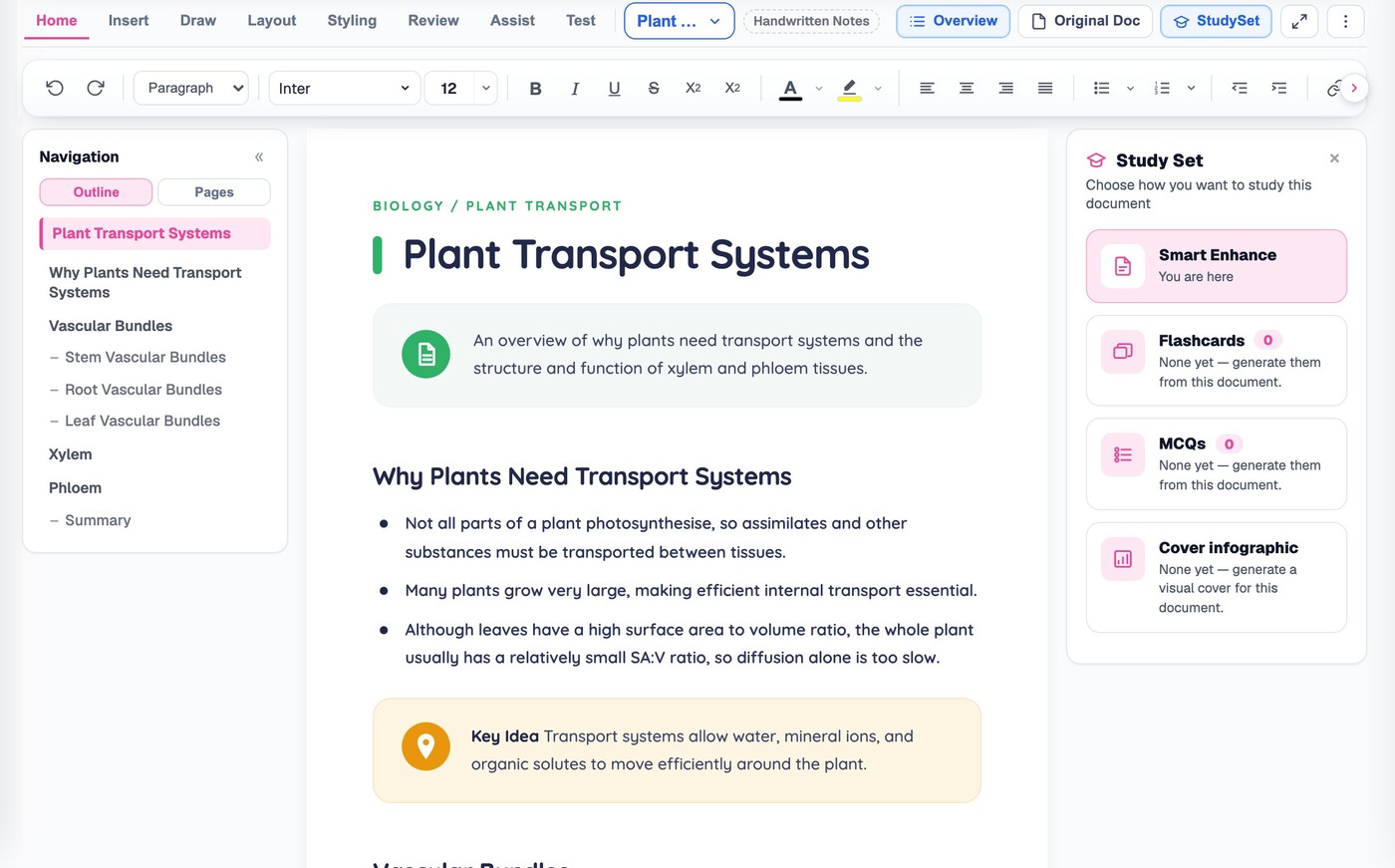
Once a video becomes a Study Doc, it works exactly like one made from a PDF or your own handwriting: the same ribbon, themes, AI writing tools and proofing.
Questions, answered
How pasting a video link turns into notes, flashcards and MCQs.
Try BrightStudy free and upload your first document, or email us at support@brightstudy.ai.
How do I turn a YouTube video into notes?
Does the video need captions?
Can I use a private video?
Can I Digitise a YouTube video like a file?
Where do my YouTube videos go afterwards?
Can I watch the video inside BrightStudy?
Can I get flashcards and MCQs from a video, not just notes?
Is turning a YouTube video into notes free?
Explore the rest of BrightStudy
Move across the strips · tap one to explore
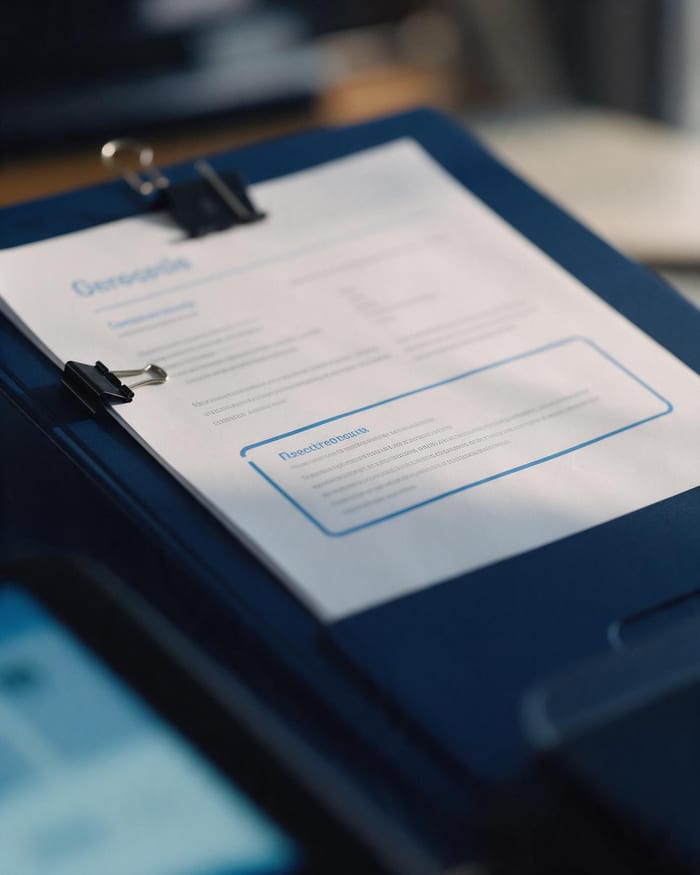 Study DocsStructured notes you can read, edit and study from.Learn more →
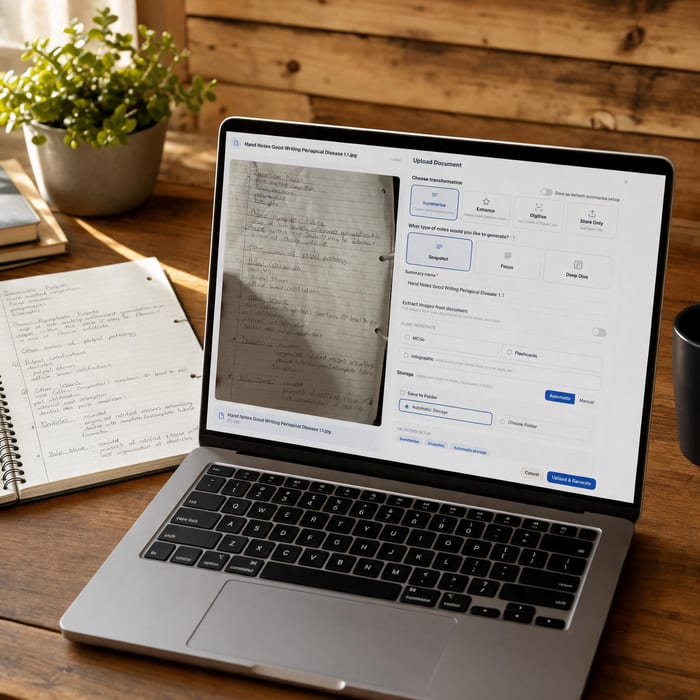 Document UploadsPDFs, slides and typed or handwritten notes.Learn more →
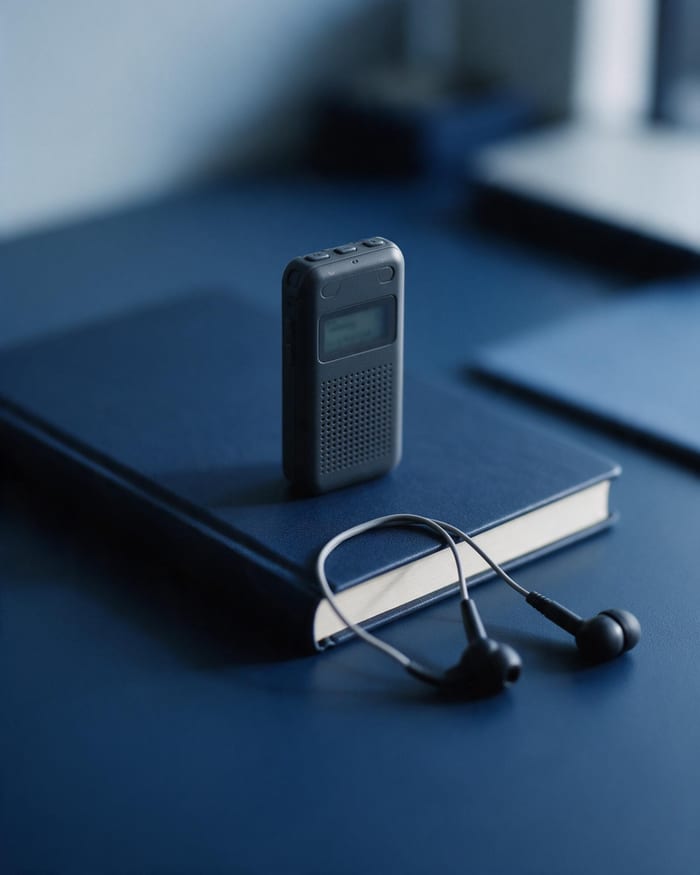 RecordingsRecord or upload audio for your learning.Learn more →
 Image ExtractionBring the figures from your documents into your notes.Learn more →
 Manual CreationWrite your own notes, flashcards and MCQs.Learn more →
 FlashcardsActive recall with focused question-and-answer cards.Learn more →
 MCQsExam-style questions with answer explanations.Learn more →
Stop re-watching. Start studying.
Paste a lecture link once, and get notes, flashcards and MCQs you can actually revise from.
- Free plan to get started
- Study Docs, flashcards and MCQs
- Runs in your browser