Show up the way you want to
Upload a photo or pick one of 1,000 illustrated avatars, set a username friends and strangers see instead of your real name, and decide field by field who gets to see your photo, status, course and interests.

Choosing your look
A photo, or a face that is entirely yours
Nobody has to use a real photo. Pick whichever feels right, and switch any time.
Upload a photo
A JPEG, PNG or WebP image, cropped to a square automatically.
Or pick a preset
1,000 illustrated avatars — animals, birds, sea life, reptiles and bugs, fantasy, robots and space, or nature and things.
Search by name
Type "fox", "dragon" or "robot" to jump straight to it.
Browse by category
Seven tabs, or "All" to scroll everything at once.
Switch any time
One click swaps your avatar everywhere it appears.
You decide, field by field
Photo, online status, course, interests and Community Library contributions each have their own setting — not one switch for everything.
Everyone
Choose it if
You want your Library contributions to stand out, or do not mind strangers seeing a field.
You get
Visible to any visitor to your public profile. The default for contributions.
See how it works ↓Friends
Choose it if
The default for your photo, online status, course and interests.
You get
Only people you are friends with can see it.
See how it works ↓No one
Choose it if
You would rather keep a field private altogether.
You get
Hidden from everyone, friends included.
See how it works ↓Blocked
Choose it if
Someone you do not want contact with.
You get
Blocking hides your profile from them in both directions, and they cannot send you a request.
See how it works ↓What a visitor sees depends who they are
/social/u/:handle renders differently depending on your relationship with whoever is looking.
Shown per your settings
A friend
- Your chosen name, never your real name.
- Your photo or preset avatar, and your online status, if you have set them to Friends or Everyone.
- Friend, Message and More actions.
Someone else
- Your @handle, since they are not a friend.
- Only the fields you set to Everyone.
- A request button, unless you only accept invites.
Someone you blocked
- "You blocked this person. They can’t see your profile or send you requests."
The details that shape what you study
Set once in onboarding, and editable any time from Settings — this is what tells BrightStudy’s AI tools what level and exam to write for.
Country & language
UK, US or Australia, each with its own spelling and terms.
Study level & qualification
From primary through to postgraduate.
Course, year & pathway
Your course or specialty, and which year you are in.
Target exam
The named exam you are preparing for, if any.
Subjects & exam boards
Each subject with its own exam board, where it applies.
One profile, several places
Your photo or preset avatar, and the name you chose, travel with you — not everywhere, but in the places that matter.
Your public profile
Name, photo, status, course and your Library contributions, each per your visibility settings.

The avatar picker
Search or browse by category across 1,000 illustrated avatars.

Friends & chats
Your friends list and chat threads show your photo or avatar, with your presence.

Settings
Your username and a summary of your study profile, with a link to edit it.

Pick it once, see it in the right places
Your avatar is not pinned to one screen — it follows you into the places you actually interact with people.
Pick a photo or a preset
Upload an image, or choose from 1,000 illustrated avatars.
Shows on your public profile
Per your Profile photo visibility setting — Everyone, Friends or No one.
Shows to friends and in chats
Your friends list and chat threads carry it, alongside your online status.
Replaces your top-bar initial
Once it loads, it swaps in for the initial in your account menu, and is cached so it appears instantly next time.
Your profile, step by step
A handful of settings, each one optional beyond a username.
- 1
Set your username
What everyone sees, including the Community Library and leaderboards.
- 2
Pick a photo or a preset avatar
Search or browse 1,000 illustrated options.
- 3
Set who sees what
Photo, status, course, interests and contributions, field by field.
- 4
Fill in your study profile
Country, level, course, year, exam and subjects with their boards.
- 5
Appear to friends, not strangers
Your chosen name and online status show to friends; everyone else sees your handle.
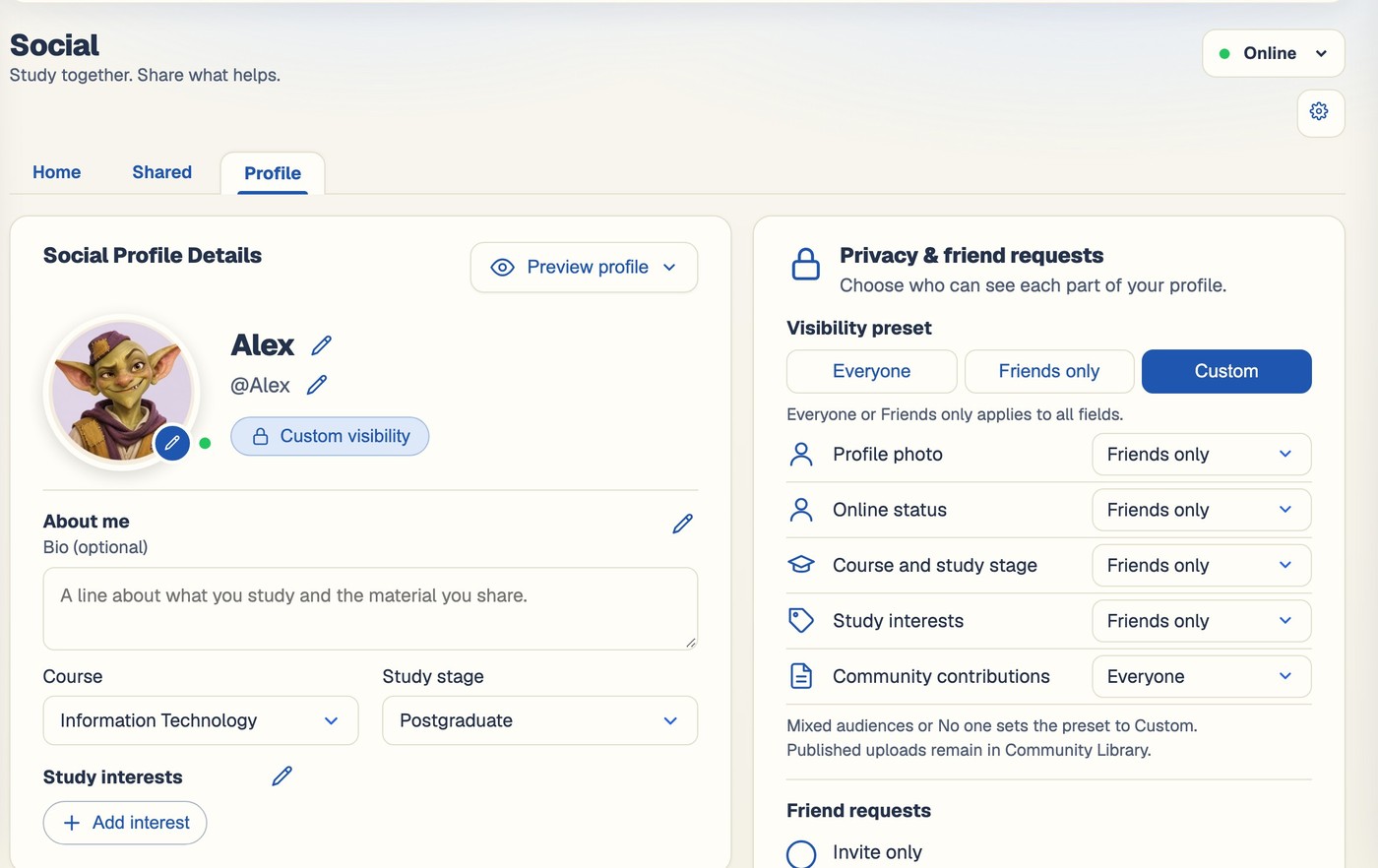
Bio, interests and visibility, all in one editor
Your bio, study interests, course and study stage, and every visibility toggle, live in one tab under Social — changes save and apply straight away.
Questions, answered
What is shown, to whom, and how to change it.
Try BrightStudy free and upload your first document, or email us at support@brightstudy.ai.
Can I use a photo of myself?
What are the 1,000 preset avatars?
Does BrightStudy show my real name to other users?
Who can see my photo, online status, course and interests?
What happens if I block someone?
Where does my avatar actually show up?
Can I edit my study profile — country, level, subjects and exam boards?
Is a social profile required to use BrightStudy?
Explore the rest of BrightStudy
Move across the strips · tap one to explore
 ThemesChoose the look and atmosphere of your study space.Learn more →
 Study DocsStructured notes you can read, edit and study from.Learn more →
 Document UploadsPDFs, slides and typed or handwritten notes.Learn more →
 YouTube LearningTurn video lessons into study materials.Learn more →
 RecordingsRecord or upload audio for your learning.Learn more →
 Image ExtractionBring the figures from your documents into your notes.Learn more →
 Manual CreationWrite your own notes, flashcards and MCQs.Learn more →
Be found, on your own terms.
Pick a photo or an avatar, set a username, and decide exactly who sees the rest.
- Free plan to get started
- Study Docs, flashcards and MCQs
- Runs in your browser