Every diagram, pulled out and ready to reuse
Turn on Extract images when you upload, and BrightStudy pulls every diagram and figure out of the document, ready to redraw, drag into your Study Doc, or search for later.
Figures, pulled out automatically
Diagrams that work harder
Turn on Extract images when you upload, and every figure is lifted out and placed in your Study Doc, ready to use again.
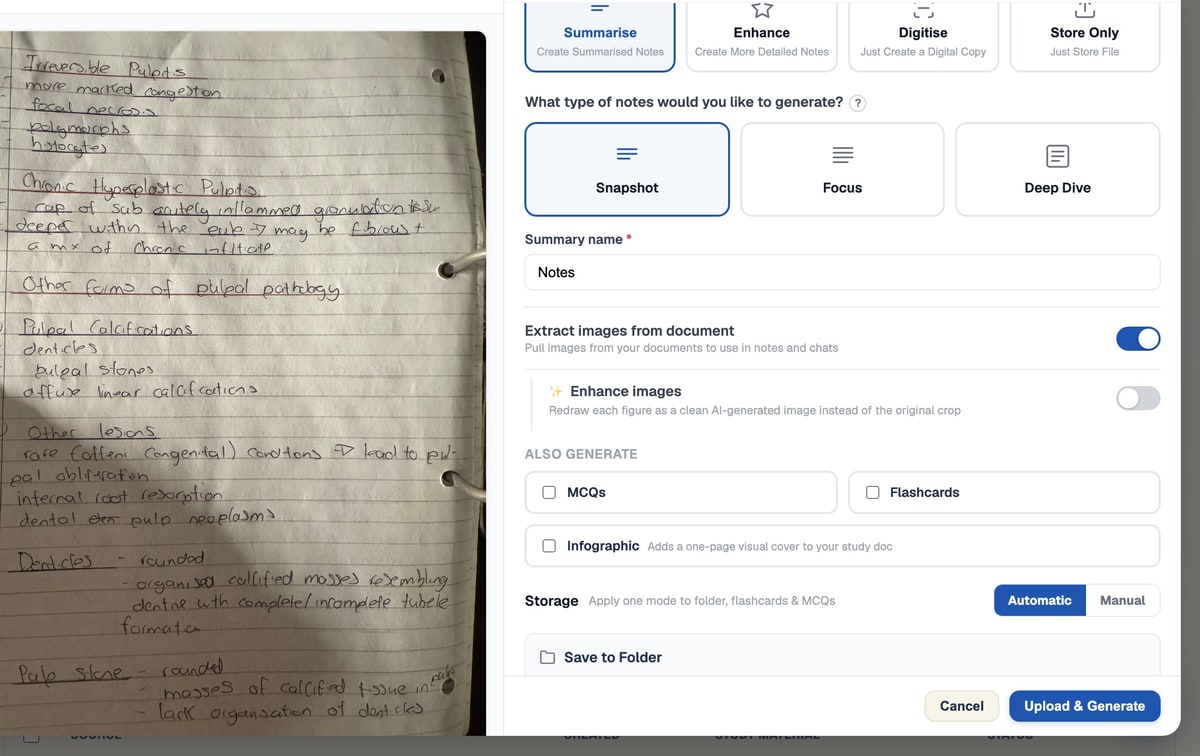
One toggle when you upload
Extract images from document, off by default, pulls every diagram and figure out of the file and places it inline.
Precise for PDFs
A PDF already knows where its own figures sit, so BrightStudy lifts them out exactly.
AI-detected for photos and scans
A photographed or scanned page has no such markers, so BrightStudy finds each figure’s position itself.
Redrawn with Enhance images
A second toggle redraws a rough or low-contrast figure as a clean, high-contrast illustration.
Drag straight into your notes
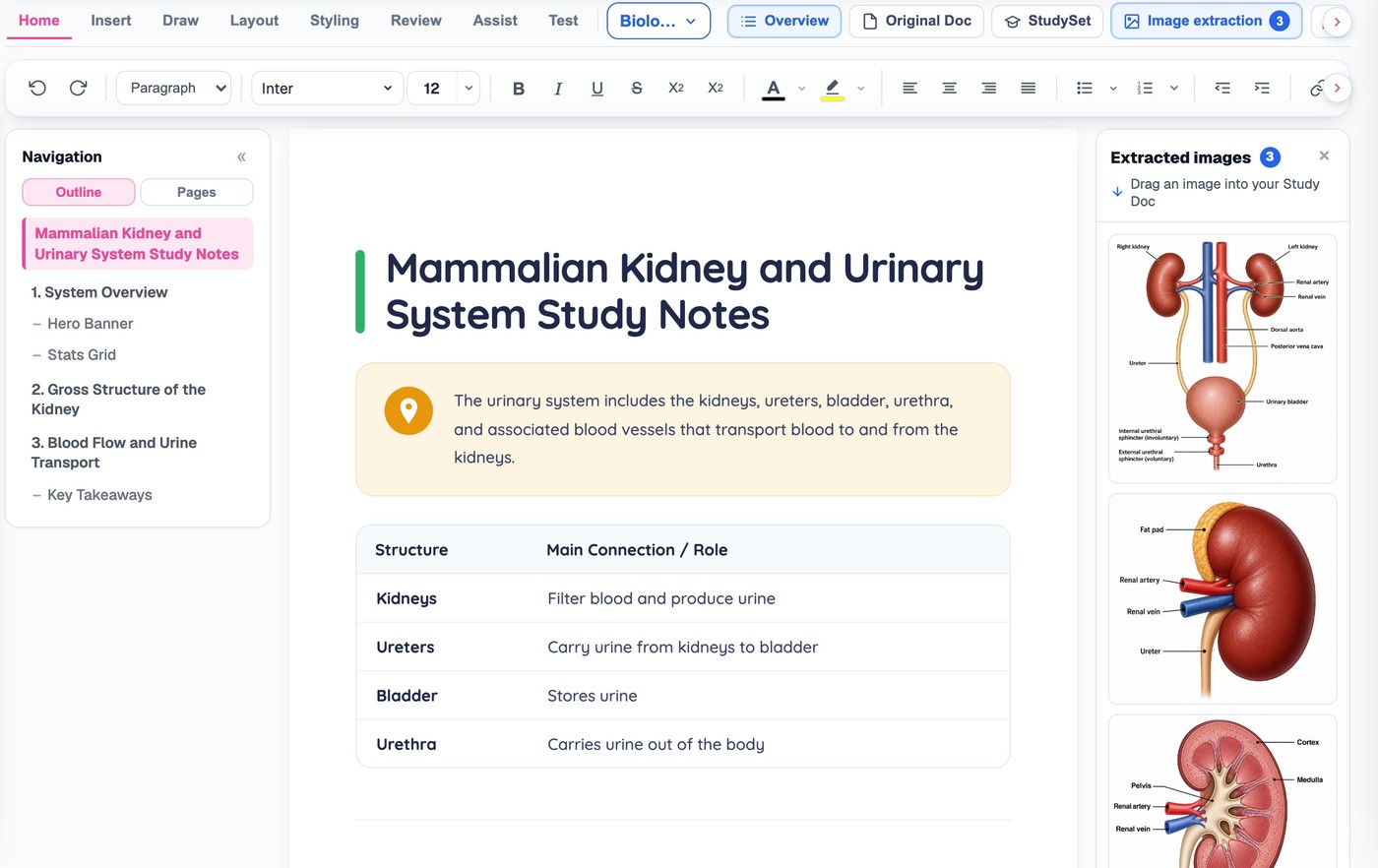
Every extracted figure sits in its own panel in the Study Doc, ready to drag in wherever you want it.
Exact where it can be,
How a figure is found depends on what you uploaded.
01
PDF pages
Your PDF already knows where each figure sits, so BrightStudy lifts it out exactly — no guessing at the edges.
02
Photos and scans
A photographed or scanned page has no such markers, so BrightStudy finds each figure’s position and crops it out.
The same figure, redrawn cleanly
Switch on Enhance images and a rough or photographed figure becomes a clean, labelled illustration — the content stays exactly the same.
Example figure
A photographed hand-drawn diagram of the nephron, lit unevenly and slightly blurred
Original crop
- Kept exactly as photographed, scanned or embedded — nothing redrawn.
Enhance images
- Recreated as a clean, high-contrast illustration.
- Every label, arrangement and proportion is preserved — nothing added or removed.
If it does not work out
- BrightStudy falls back to the original crop, so you are never left without an image.
From the panel into your document
Every figure pulled from the document waits in its own panel beside the Study Doc.
Open the panel
Click Extracted images in the Study Doc toolbar to see every figure pulled from this document.
Drag it into the document
Drag any figure from the panel straight into your notes, wherever you want it.
Move it again any time
Drag a figure already in the document to reposition it, the same way.
As captured, or redrawn and reused
Figures do not have to stay as they were found. Pick what each one needs.
Keep the original
Choose it if
The photo or scan is already clear.
You get
The figure kept exactly as captured.
See how it works ↓Enhance it
Choose it if
A diagram is rough, photographed at an angle or low-contrast.
You get
A clean, high-contrast illustration of the same figure.
See how it works ↓Insert from your library
Choose it if
You want to reuse a figure from an earlier upload.
You get
Search your own BrightStudy image library from the Insert tab.
See how it works ↓Ask for a description
Choose it if
You want a title and caption for a figure.
You get
AI Describe writes a title and a one-to-two-sentence description.
See how it works ↓Every figure, yours to reuse
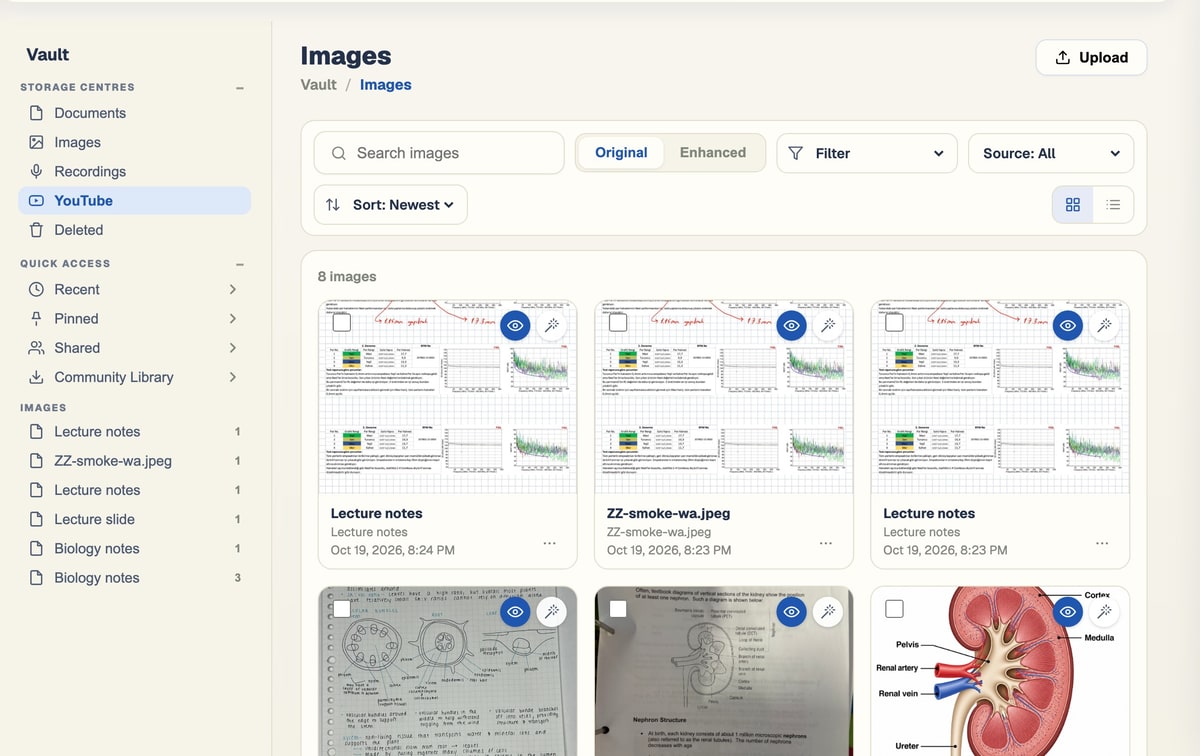
Figures do not only live in the document they came from — they build up into a library of your own.
Extracted images, ready to place
Every figure pulled from this document, waiting to be dragged in.
Study Docs →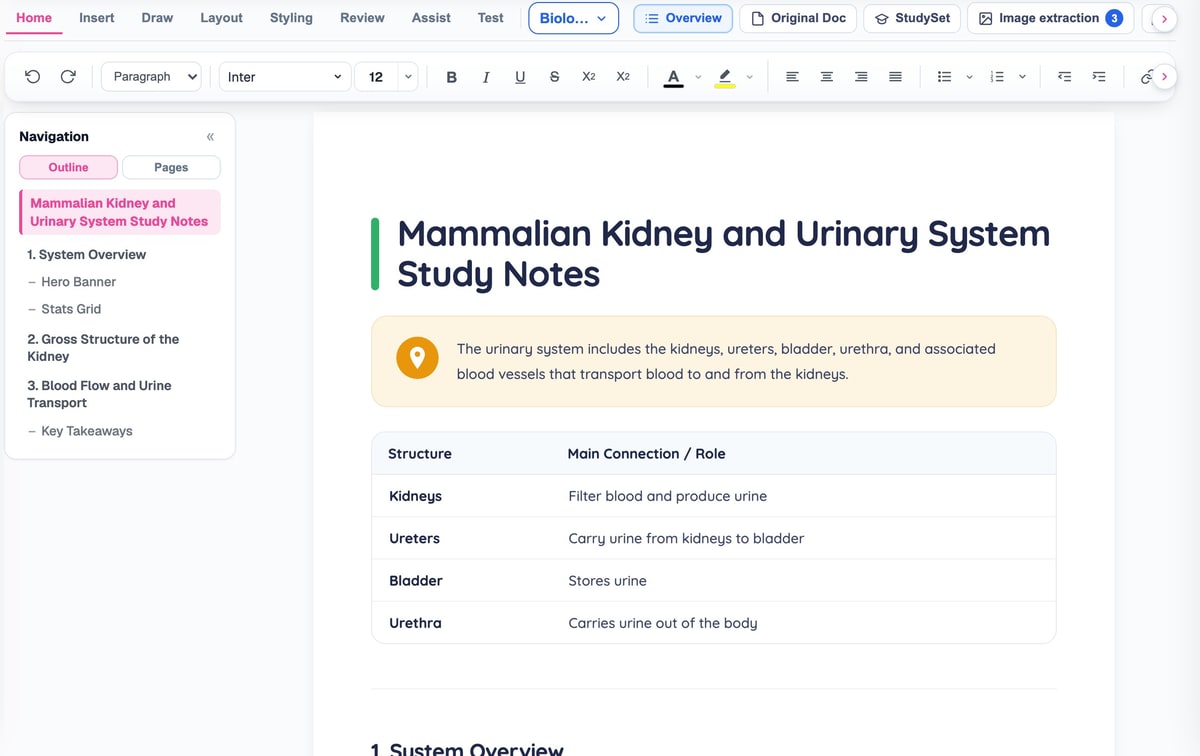
Turn it on when you upload
Extract images and Enhance images, as toggles on the upload page.
A library of your own
Every figure you have extracted, with Enhance and Describe for each one.
Search it from any document
The Insert tab’s BrightStudy Database searches your own image library, wherever you are.
Vault →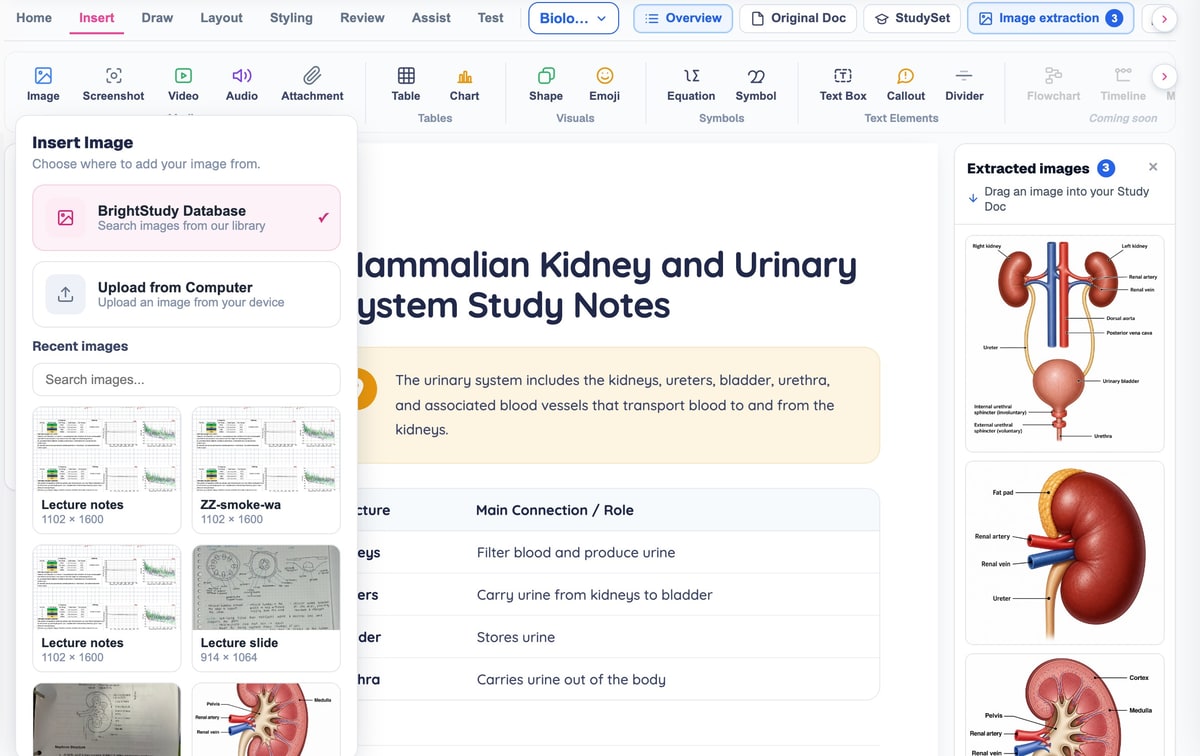
From a document to a library of your own
Figures build up every time you upload with Extract images turned on.
- 1
Turn on Extract images
A toggle on the upload page, off by default.
- 2
Figures are found
Exactly, for a PDF; AI-detected, for a photo or scan.
- 3
Redraw if you want to
Enhance images cleans up a rough or low-contrast figure.
- 4
Placed in your Study Doc
And in the extracted-images panel beside it.
- 5
Reuse it any time
Search your image library from the Insert tab of any document.
Figures that stay part of the page
An extracted figure sits in your Study Doc like any other image — move it, resize it, or drag in another from the panel beside it.
Questions, answered
How figures are found, redrawn and reused.
Try BrightStudy free and upload your first document, or email us at support@brightstudy.ai.
What does "Extract images from document" do?
How does BrightStudy know where a figure is?
What does Enhance images do, and can I turn it off?
Can I drag figures into my Study Doc myself?
Where do extracted figures end up afterwards?
What does AI Describe produce?
Can I reuse a figure from an earlier upload in a new Study Doc?
Is image extraction free?
Explore the rest of BrightStudy
Move across the strips · tap one to explore
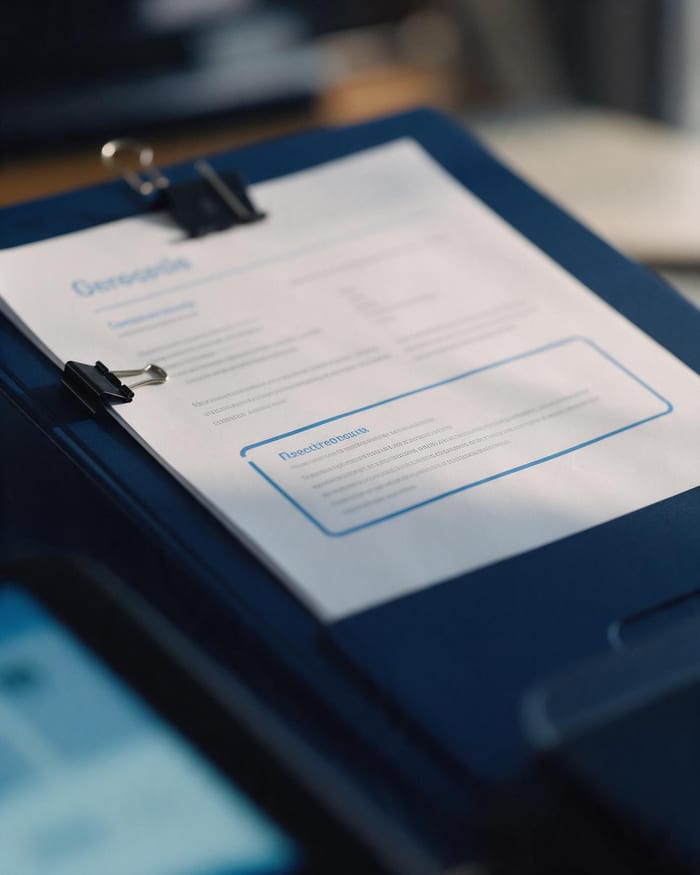 Study DocsStructured notes you can read, edit and study from.Learn more →
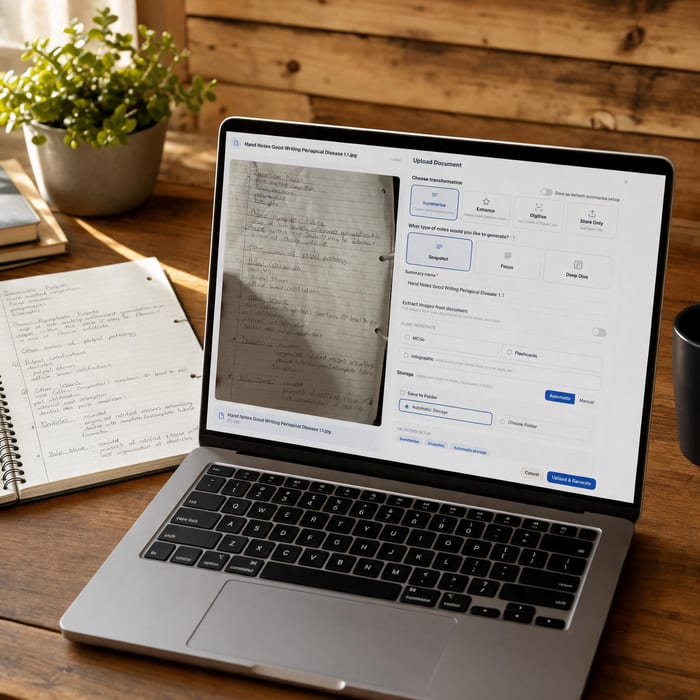 Document UploadsPDFs, slides and typed or handwritten notes.Learn more →
 YouTube LearningTurn video lessons into study materials.Learn more →
 RecordingsRecord or upload audio for your learning.Learn more →
 Manual CreationWrite your own notes, flashcards and MCQs.Learn more →
 FlashcardsActive recall with focused question-and-answer cards.Learn more →
 MCQsExam-style questions with answer explanations.Learn more →
Stop redrawing the same diagram twice.
Extract every figure automatically, clean it up if it needs it, and reuse it whenever you need it again.
- Free plan to get started
- Study Docs, flashcards and MCQs
- Runs in your browser