Plan exams, deadlines and revision in one calendar
Add what is coming up, link an exam to a subject, and BrightStudy reshapes your flashcard schedule to fit before it. Everything comes back to find you: on your dashboard, and in the bell at the top of every page.

The calendar
Every kind of date, colour-coded
One calendar for exams, deadlines, classes and your own revision sessions, each with its own colour.
Eight event types
Exam, deadline, class, revision, practical, meeting, personal or other — each with its own colour.
Link a subject
Attach any event to a Vault folder, so it filters alongside everything else in that subject.
Filter by subject or category
Narrow the month down to one subject, one event type, or both.
Month view or a flat agenda
Switch views depending on whether you want to scan a month or read a list.
All-day or timed
Set a time and an optional reminder, or just mark the day.
Set it once, let it repeat
Weekly classes and regular revision slots do not need adding one at a time.
Editing a series
Daily
- Generates up to 90 daily copies from your start date.
Weekly
- Generates up to 52 weekly copies — a year of a weekly class in one go.
Monthly
- Generates up to 12 monthly copies.
Annually
- Generates up to 5 yearly copies — handy for a recurring deadline.
Add an exam, reshape your revision
An exam is more than a date on a calendar — link it to a subject and your flashcard schedule plans around it.
Add an exam and pick a subject
Choose "Exam / assessment" as the type and link it to a Vault subject, or to one file within it.
The date writes back to your files
Every document in that subject picks up the exam date, so your Vault and calendar stay in sync.
Flashcards compress to fit
The subject’s FSRS schedule is recompressed so every review lands before the exam, not after it.
Reviews ramp up as it nears
In the last 30 days target recall climbs to 95% — see spaced repetition.
One bell, everything that needs you
The bell at the top of every page gathers what is coming up — nothing to dismiss and forget, it reappears if it still matters.
Upcoming exams
Any exam in the next 14 days, from your calendar or a Vault exam date.
Event reminders
Fires at the lead time you set when you added the event: 15, 30 or 60 minutes, or a day before.
Flashcards due
How many cards are waiting for review right now.
New MCQs
Questions you have never attempted yet.
Scan a month, or read a list
Switch views depending on whether you want the shape of the month or a straightforward list to work through.
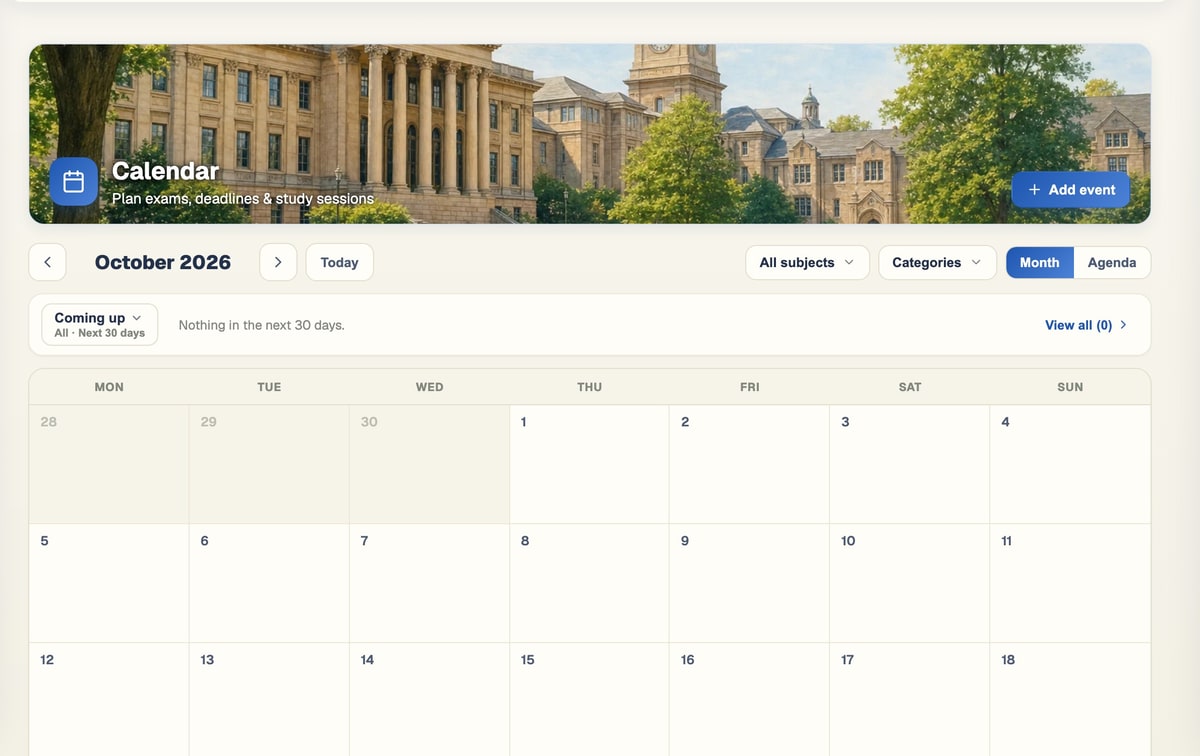
Month view
Choose it if
You want to see the shape of your month at a glance.
You get
A grid with every event, drag any one to a new day to reschedule it.
See how it works ↓Agenda view
Choose it if
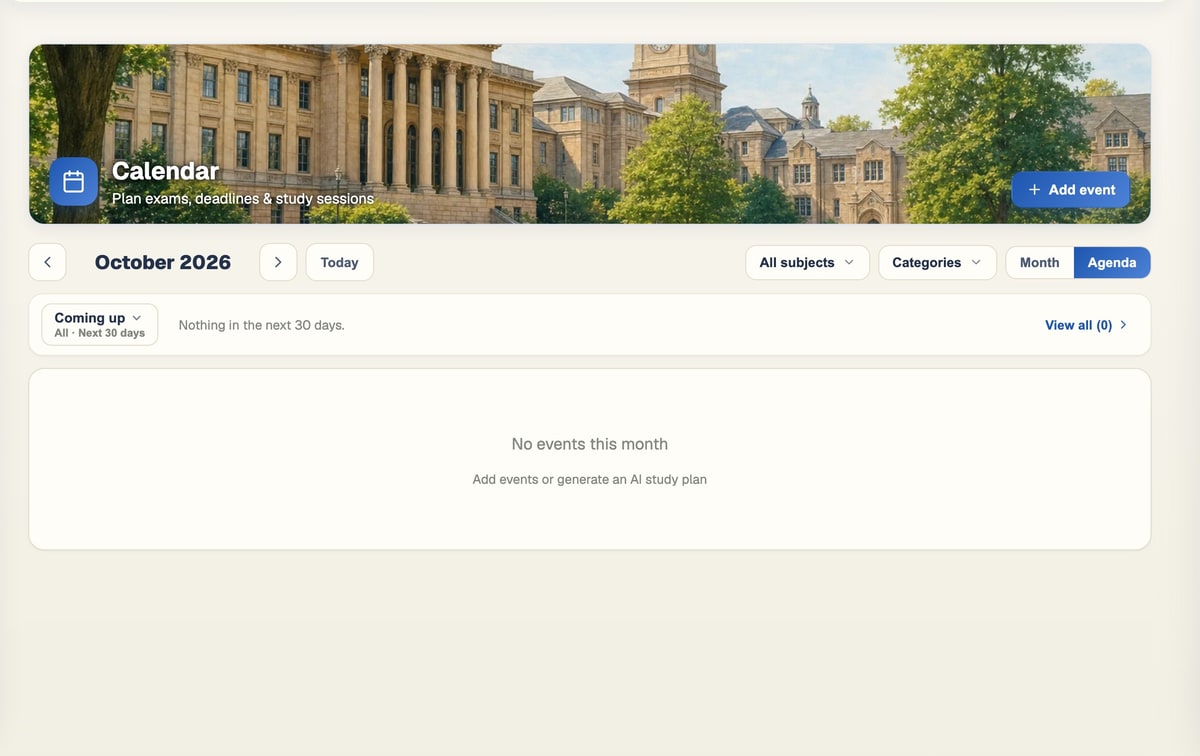
You want a list to work through.
You get
Events in order, each with a checkbox to mark it done.
See how it works ↓"Coming up" panel
Choose it if
You just want what is next.
You get
The next 30 days, filterable by category, without opening the full month.
See how it works ↓Subject & category filters
Choose it if
You only care about one thing right now.
You get
Narrow the calendar to one subject, one event type, or both.
See how it works ↓Your calendar, wherever you are
You do not have to open the calendar to know what is coming — it is on your dashboard, in the bell, and in the BrightStudy mobile app.
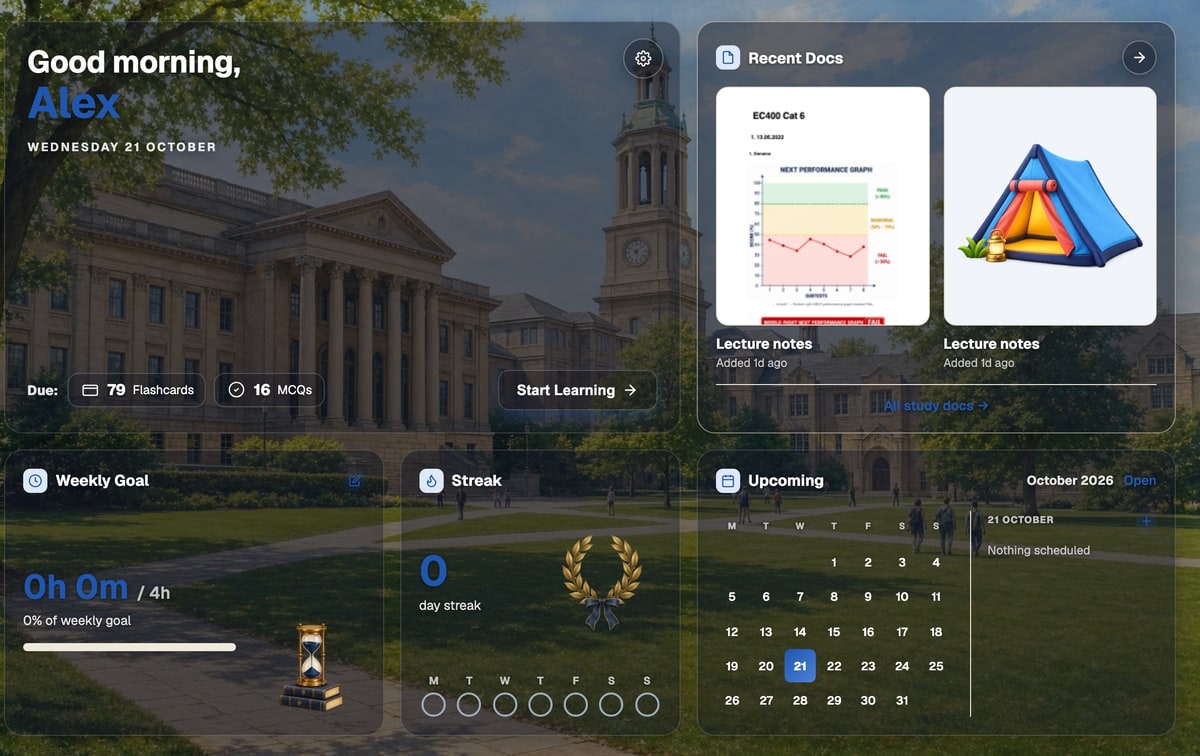
Dashboard "Upcoming" widget
A mini month view with a coloured dot per event, a side panel for the selected day, and one click through to add an event.
Drag to reschedule
Drag any event onto a new day in month view.
The notifications bell
Exams, reminders, due cards and new MCQs, soonest first.

Agenda view, tick as you go
A flat list of what is coming up, with a checkbox to mark each one done.
From adding an event to it finding you again
Add it once, and BrightStudy takes care of surfacing it at the right moment.
- 1
Add an event
Pick a type, a date and an optional time.
- 2
Repeat it, if it recurs
Daily, weekly, monthly or annually, expanded for you.
- 3
Link it to a subject
An exam linked to a subject reshapes that subject’s revision schedule.
- 4
It shows up everywhere
Your dashboard, the bell, and the calendar itself, always in sync.
- 5
Move it any time
Drag it to a new day, or edit the whole series at once.
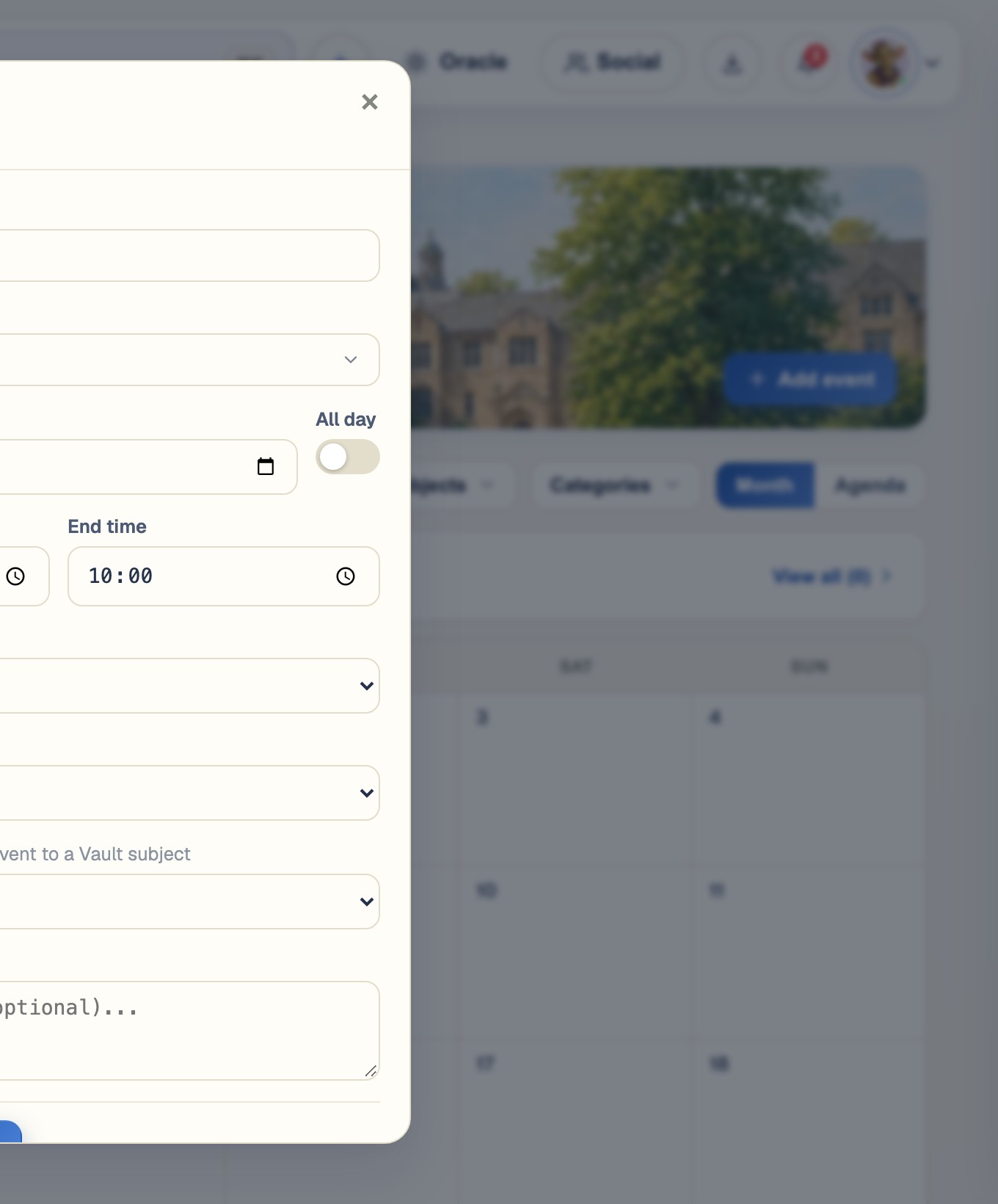
One form for every kind of event
Title, type, date and time, an optional repeat, an optional reminder and an optional subject link — all in one form, whether it is an exam or a Sunday revision slot.
Questions, answered
How events, repeats, exam links and reminders work.
Try BrightStudy free and upload your first document, or email us at support@brightstudy.ai.
What event types can I add?
Can events repeat?
How does linking an exam to a subject help my revision?
Can I move an event to a different day?
What does the notification bell show me?
Does my calendar show up on the dashboard?
Is there a calendar in the mobile app?
Is the calendar on the Free plan?
Explore the rest of BrightStudy
Move across the strips · tap one to explore
 VaultDocuments, images and recordings in folders.Learn more →
 Progress AnalyticsTrack your study activity and performance.Learn more →
 Topic AnalysisFind stronger topics and areas that need attention.Learn more →
 Study DocsStructured notes you can read, edit and study from.Learn more →
 Document UploadsPDFs, slides and typed or handwritten notes.Learn more →
 YouTube LearningTurn video lessons into study materials.Learn more →
 RecordingsRecord or upload audio for your learning.Learn more →
Never lose track of what is coming up.
Add your exams and deadlines once, and let BrightStudy plan your revision around them.
- Free plan to get started
- Study Docs, flashcards and MCQs
- Runs in your browser