Study with people, not just notes
Add friends by handle or email, see who is online, and chat live — typing, read receipts and files included. Chat is for verified adults: a quick, one-off 18+ check unlocks it for your account.

Friends, your way
Built around people you already know
There is no directory to browse — you add people you already know, by their exact handle or email.
Add by handle or email
Search a username or enter an exact email address. No public profile browsing.
Accept, decline or block
Respond to a request, or block someone so they can’t see your profile or try again.
See who is online
Online, Busy or Invisible, plus an optional status message and emoji.
Remove a friend
Any time, from either side — no notice is sent.
Chat needs a quick check
A one-off 18+ check unlocks messaging and group chats for your account.
Just the two of you, or the whole group
Open a direct chat for one friend, or a group for several people studying the same thing.
Message one friend
Choose it if
A quick one-to-one conversation.
You get
A direct chat that opens the moment you pick a friend.
See how it works ↓Start a group
Choose it if
Studying with more than one person at once.
You get
A group chat with its own name, icon and colour, built from your friends.
See how it works ↓Share material first
Choose it if
You just want to send a deck or MCQ set.
You get
Pick a friend or group when you share.
See how it works ↓Live, not a page you have to refresh
Every device holds one open connection, so messages, typing and read receipts arrive the instant they happen.
Every message shows
Example chat
@alex: “Sent a file: topic-9-notes.pdf”
Live, not polled
- Your account keeps one connection open per device, so a message reaches every tab and phone at once.
- Messages, typing and presence all travel the same way — no waiting for a refresh.
Typing & read receipts
- A typing indicator appears while someone is writing.
- Your last message shows Read, or Read by 3 in a group, once everyone has seen it.
Files, screened
- Send PDF, Word, PowerPoint, Excel, PNG, JPEG or WebP files up to 25 MB.
- Images are checked automatically before anyone sees them; ones that are not suitable for BrightStudy chat are refused.
Say as much, or as little, as you like
Set how you appear to friends and group co-members, and change it any time.
Online
Signal you are around and happy to chat.
Busy
Still visible to friends, just less available.
Invisible
Appear offline to everyone, friends included.
Custom status
A short message and an emoji, for example “📚 Studying chemistry”.
Chat, kept to people who should be there
A few checks run quietly in the background, so chat stays for the people it is meant for.
Decline or block a request
Turn down a friend request, or block someone from their profile so they can’t see it or message you again.
Images are checked
A quick safety check runs on images sent in chat before anyone sees them; unsuitable ones are refused.
18+ to message
Direct messages and group chats need a one-off age check, same as the rest of chat.
Everything else stays open
Friends, profiles and sharing by email work for everyone — only messaging itself is gated.
From a handle to a live conversation
Five steps, most of them one tap.
- 1
Add a friend
By @handle or their exact email — no directory to browse.
- 2
Verify once, 18+
A quick check unlocks chat for your account, for good.
- 3
Say hello
Open a direct chat, or start a group for more than one person.
- 4
Chat live
Typing, read receipts and files, all over one connection per device.
- 5
Stay in the loop
Unread messages and friend requests show as a badge in the top bar.
Everything in one Social page
Friends, requests, chats and your study groups, all from one place.
Social Home
Friends online now, recent conversations, your study groups and friend requests.

A live conversation
Typing indicators and read receipts, right under your last message.

Files, inline
Open or download a sent file without leaving the chat.

One badge for everything
Unread messages and friend requests, counted together in the top bar.

Decide who can reach you
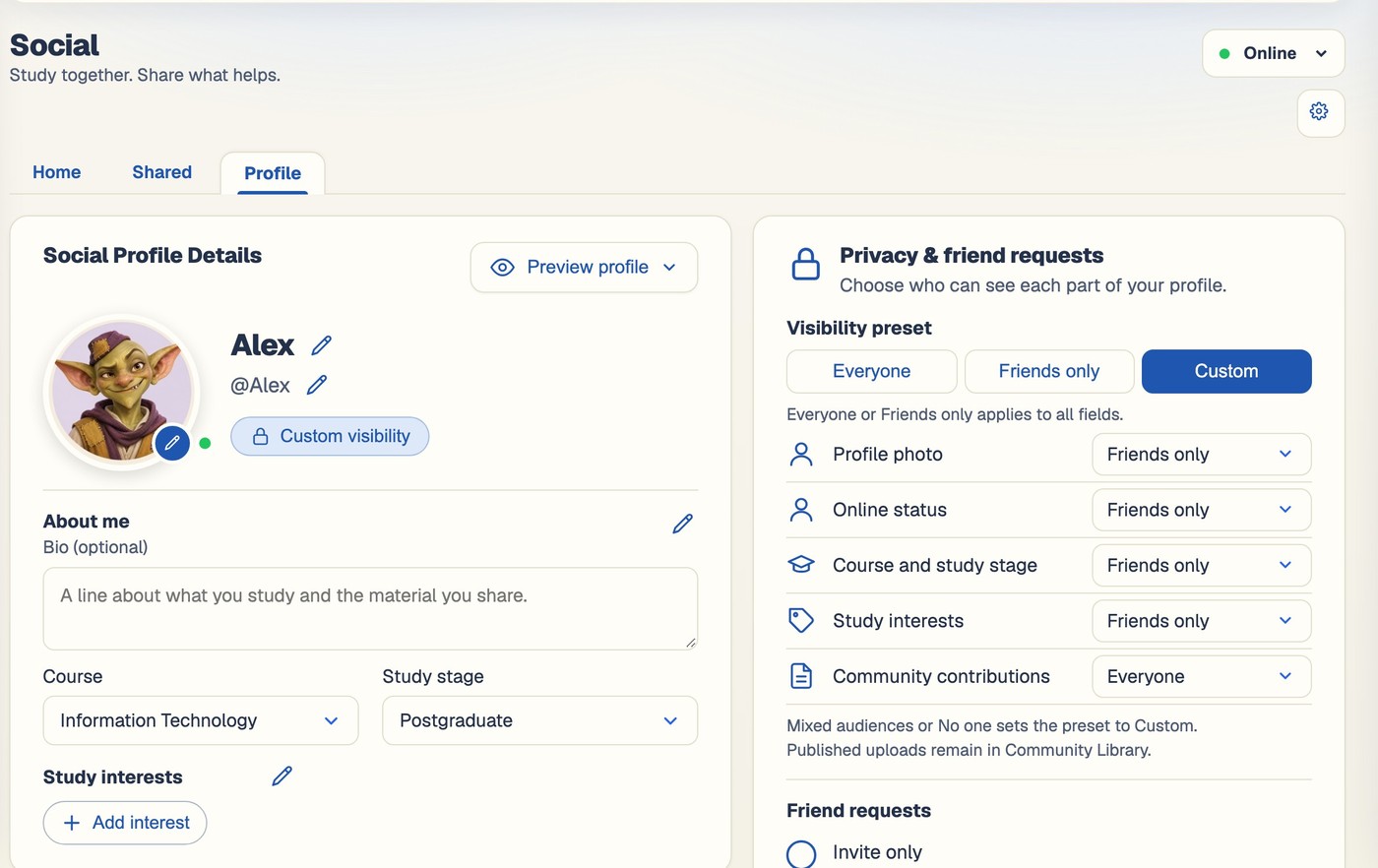
By default, anyone who knows your handle or email can send a friend request. Switch your profile to invite-only in Social → Profile → Privacy, and only people you invite can connect — everyone else sees that you only connect with people you invite.
Questions, answered
How to connect, chat and stay in control of who can reach you.
Try BrightStudy free and upload your first document, or email us at support@brightstudy.ai.
How do I add a friend?
Can I message someone who hasn’t verified their age?
How does BrightStudy know I’m 18 or over?
Can I see if someone is online?
Does BrightStudy show when someone has read my message?
Can I send files in chat?
Can I stop just anyone sending me a friend request?
What happens if I block someone?
Explore the rest of BrightStudy
Move across the strips · tap one to explore
 Community LibraryStudy resources shared by the community.Learn more →
 Resource SharingShare Study Docs, flashcards and MCQs.Learn more →
 Study GroupsBring people and shared resources into a group space.Learn more →
 Study DocsStructured notes you can read, edit and study from.Learn more →
 Document UploadsPDFs, slides and typed or handwritten notes.Learn more →
 YouTube LearningTurn video lessons into study materials.Learn more →
 RecordingsRecord or upload audio for your learning.Learn more →
Study with people, not just notes.
Add your friends, see who is around, and chat live while you revise together.
- Free plan to get started
- Study Docs, flashcards and MCQs
- Runs in your browser